





♥ Follow Me ♥

♥Free Fonts♥


Showing posts with label ANIMATED TUTS. Show all posts
Showing posts with label ANIMATED TUTS. Show all posts
Tuesday, February 26, 2013
SUPPLIES NEEDED
TUBE OF CHOICE: I used the beautiful artwork of
Angelica Sellers.
This tube is called The Mask.
You must have a license to use this art.
You can find this art and get your license HERE.
SCRAPKIT: Nightshade by Angelica Sellers.
You can find it HERE.
SUPPLES: This is the animated ribbon & word art.
These supplies are for Personal Use ONLY.
You can snag it HERE.
FONT OF CHOICE: I used Copper Alt Caps Expert.
I used Photoshop for this tut.
♥♥♥♥♥♥♥
In this tut we'll use some premade animation.
If you don't wish to animate, just skip the steps marked *BLUE*
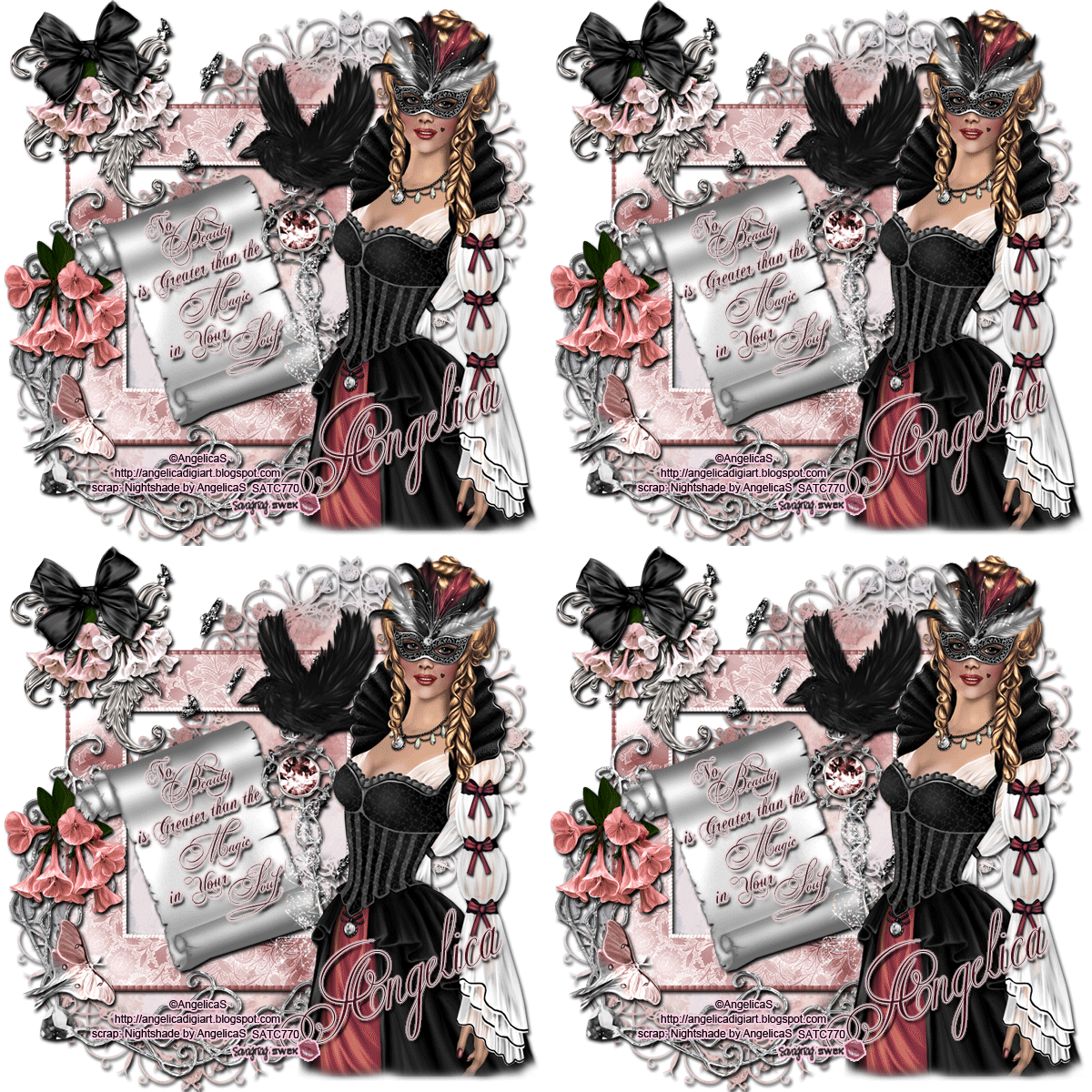
Use my tag as a guide for placement of elements.
Open a canvas 800x800 pixels.
Transparent background.
If you are animating,
Flood fill with the color of your choice.
Open paper19.
In the photomasks folder,
Open mask01Photoshop.
With the mask01 layer highlighted,
Hold your CTRL key down on your keyboard
and hit your mask icon in the layer palette
at the same time.
You'll see little marching ants now.
Highlight your paper19 layer.
Click the mask button
(this is a square with a circle in it)
at the bottom of the layer palette.
*You should have two pictures in your paper layer now.
One of your paper and one of the mask.*
Hide your mask layer.
Highlight the paper layer.
Right click in the layer palette.
Hit Convert to Smart Object.
Right click again.
Click Rasterize Layer.
Now you can delete the gray mask layer.
Duplicate your new mask layer.
Place both layers to your liking.
Open your tube.
Place over to the right.
Grab a soft edged eraser.
Erase around the bottom edges to create a soft look.
We will now build our tag on top of the masks layers
and under the tube layer.
Highlight the second mask layer.
We will place our elements on top of this.
Make sure the tube stays at the top of the Layer Palette.
These are the elements I used.
Use my tag as a guide for placement.
element30
element38
element50, resize to 50%
element47, resize to 25%
Flip this layer Vertically.
element11, resize to 50%
element48, resize to 45%
element49, resize to 25%
element12, resize to 35%
element04
resize this layer to 50%Wide, 65%High
Open your Wordart
resize this to 50%Wide, 60%High
I used some effects on the wordart.
Color Overlay, color: 6c2637
Stroke, Outside, 1, color: dedede
Outer Glow
Drop Shadow
Bevel & Emboss
*Highlight Mode: Screen, color fbdfdf
Shadow Mode: Multiply, color 672434*

Continue with these elements:
element07
element51, resize to 45%
Open AngelicaSbling46 in your supplies.
You will see four layers.
Place all four layers onto your taggie.
Place them directly on top of each other on your tag.
Use my tag as a guide for placement.
Place a drop shadow on all your layers except:
AngelicaSbling46 layers
Resize the siggy to your liking.
Make a new layer.
Type your name on the taggie.
I used color 6c2637
I used the same effects as the wordart.
MOST IMPORTANT!!
You must now do this:
Put the artist's name, website, and your license number
of the tube you used on the siggy!!
Add your name (ie: Designed by Your Name) behind this info.
Make sure this info is legible and clearly seen.
If you don't want to animate, Save as PNG.
YOU'RE DONE!!
(If you want to maintain your layers
Always Save as PSD first.
Then you can save it as a PNG.)
**TO ANIMATE**
In the Layer Palette,
Hide all layers of AngelicaSbling46
except the first layer.
Open the Animation Window.
Set the time for .2
Show all the rest of the layers in your tag.
Click the square button, next to the trash can,
in the animation window.
This will duplicate the first animation frame.
Do this two more times.
You should now have four animation frames.
Highlight the second animation frame.
Go over to your Layer Palette.
Leave everything as is except:
Hide the first layer of bling.
Unhide the second bling layer.
Now go back to your animation window.
Highlight the third animation frame.
Go over to your Layer Palette.
Leave everything as is except:
Hide the second layer of bling.
Unhide the third bling layer.
Back to your animation window again.
Highlight the fourth animation frame.
Go over to your Layer Palette.
Leave everything as is except:
Hide the third layer of bling.
Unhide the fourth bling layer.
Click Play.
If you like what you see...
Save as PSD. Then Save for Web & Devises.
YOU'RE DONE!
I hope you had fun with this tut
and that you can use the different techniques
in other taggies you create!
HUGS!
*This tut was created by me, Redneck Tuts by Savage.
Any resemblance to any other is purely coincidental.*
Artist: ©Angelica S. http://angelicadigiart.blogspot.com SATC770
Monday, December 24, 2012

SUPPLIES NEEDED
TUBE OF CHOICE: I used the beautiful artwork of
Angelica Sellers.
This tube is called Crystal.
You must have a license to use this art.
You can find this art and get your license HERE.
SCRAPKIT: Aurelica by Angelica Sellers.
You can find it HERE.
MASK: Mask17 by Savage SWAK.
You can snag it HERE.
FONT OF CHOICE: I used Bickham Script Two.
I used Photoshop for this tut.
♥♥♥♥♥♥♥
In this tut we'll make several layers sparkle.
If you don't wish to animate, just skip the steps marked *BLUE*
Use my tag as a guide for placement of elements.
Open a canvas 800x800 pixels.
Transparent background.
If you are animating,
Flood fill with the color of your choice.
Open paper02.
Go to the upper right corner of your Layer Palette.
In the box next to Opacity,
type in 65.
Hit Enter on your keyboard.
Now we'll make the frame.
Open element20.
Resize this to 35% in Height only.
Leave Width as is.
Move this to bottom of taggie.
Duplicate this layer.
Move this layer to top of tag.
Duplicate.
Rotate 90% CW (clockwise).
Move to left of siggy.
Duplicate.
Move to right side of tag.
With this layer still highlighted,
Right click in the Layer Palette.
In the menu that pops up,
Click Merge Down.
Do this two more times
until all the element20 layers
are merged into one layer.
Duplicate this layer.
Open your tube.
Center on canvas.
Duplicate this layer.
Hide the duplicated layer for now.
Grab a soft edged eraser.
Erase around the edges of this tube layer.
Open element03.
Use my tag as a guide for placement.
Resize to 35%.
Grab a soft edged eraser.
In the tool bar at the top of your screen,
find the word Opacity.
In the box next to this,
type in 44.
Now erase the stem and leaves of the rose.
This gives it a softer look.
Move element03 layer under your tube layer.
Again, grab a soft edged eraser.
With the rose layer highlighted,
Erase over your tubes fingers.
Move your rose layer back on top
of your tube layer.
It should now look like she is holding the rose.
Open element07.
Resize to 70%.
Duplicate this layer.
Open Mask17.
You'll see four layers in Mask17.
Only move the layer called Sav_WAmask17
onto your siggy.
Go to the tool bar at the top of your screen.
Click Layer.
Layer Style.
Color Overlay.
I used color: edd0d3
Now place a Stroke on this layer.
I used:
Inside, 1, color: cd4e78
Now unhide your duplicated tube layer.
Move this layer up in your Layer Palette
so it's on top of your mask layer.
Resize to 30%.
Place to your liking.
These are the elements I used:
element34, resize to 50%
Duplicate this layer.
element 22, resize to 25%
Duplicate this layer.
Flip Horizontally.
Open element 56.
Resize to 50%
Grab your Magic Wand.
Hold your Shift key down
and click on the pink area repeatedly
until all the pink has the marching ants around it.
Let go of the Shift key.
Now go to Edit in your tool bar at the top of your screen.
Click Copy.
Back to Edit.
Click Paste.
I named these pink area1 and 2.
Highlight element56 layer again.
Repeat the Magic Wand steps
inside the pink area.
Go to Edit in the top tool bar.
Click Cut.
Now the pink area is gone.
Continue with these elements:
element06, resize to 25%
element21, resize to 25%
Duplicate this layer.
element50, resize to 20%
element67, resize to 65%
Highlight element21 layer.
Looking at the dove layer, element76,
Grab an eraser
and erase where the dove's feet are.
Move the duplicated element21 layer
on top of the dove, element67.
It will look like the dove is holding the branch.
We'll make some layers sparkle now.
Do the steps below for each of the following layers:
element 20, 70, and pink area layers
Highlight the first layer of element20.
Go to Filter in your tool bar.
Click Noise.
Click Add Noise.
Set Amount to 8%
Check the box called Guassian.
Check the Monochromatic box.
Hit OK.
Highlight the first layer of element70.
Go back to Filter.
Click Add Noise.
(This will be the first thing listed in the drop down menu
and will automatically repeat your Noise settings.)
Highlight the first layer of pink area.
Filter.
Add Noise.
For each of the second layers,
Repeat Noise steps above using these settings:
Check the box called Uniform.
Set Amount to 12%.
Keep Monochromatic checked.
Hit OK.
Place a drop shadow on all your layers except:
paper02
first tube layer
WAmask
pink area layers
I used color 704565 for my drop shadows.
Resize the siggy to your liking.
Make a new layer.
Type your name on the taggie.
I used color edcdd0.
Now place a Stroke:
Stroke, Center, 2, color cc6fa1
I also used:
Bevel & Emboss

MOST IMPORTANT!!
You must now do this:
Put the artist's name, website, and your license number
of the tube you used on the siggy!!
Add your name (ie: Designed by Your Name) behind this info.
Make sure this info is legible and clearly seen.
If you don't want to animate, Save as PNG.
YOU'RE DONE!!
(If you want to maintain your layers
Always Save as PSD first.
Then you can save it as a PNG.
**TO ANIMATE**
In the Layer Palette,
Hide the second layers of:
element20
element07
pink area
Open the Animation Window.
Set the time for .2
Show all the rest of the layers in the first frame.
Click the square button, next to the trash can,
in the animation window.
This will duplicate the first animation frame.
Highlight the second animation frame.
Go over to your Layer Palette.
Leave everything as is except:
Hide the first layers of:
element20
element07
pink area
Unhide the second layers.
Now go back to your animation window.
Click Play.
If you like what you see...
Save as PSD. Then Save for Web & Devises.
YOU'RE DONE!
I hope you had fun with this tut
and that you can use the different techniques
in other taggies you create!
HUGS!
*This tut was created by me, Redneck Tuts by Savage.
Any resemblance to any other is purely coincidental.*
Artist: ©Angelica S. http://angelicadigiart.blogspot.com SATC770
Thursday, December 20, 2012

SUPPLIES NEEDED
TUBE OF CHOICE: I used the sexy artwork of
Keith Garvey.
You must have a license to use this art.
You can find this art and get your license HERE.
SCRAPKIT: Hobby Madness by Mellow's Graphics.
You can find it HERE,
*Update: Jan 2014 ~This kit may no longer be available.
However, you can still use the techniques in this tut.
*Update: Jan 2014 ~This kit may no longer be available.
However, you can still use the techniques in this tut.
FONT OF CHOICE: I used Oxida.
I used Photoshop for this tut.
♥♥♥♥♥♥♥
In this tut we'll be doing several things:
- Making a frame and making it sparkle
- Make a flashing background
- Using a marker to write out your name
Sounds like a lot of things going on but no worries!
Just take it step by step.
If you don't wish to animate, just skip the steps marked *BLUE*
Use my tag as a guide for placement of elements.
Open a canvas 800x800 pixels.
Transparent background.
If you are animating,
Flood fill with the color of your choice.
Open paper12.
Open paper16.
Center on canvas.
Highlight paper12 layer.
Go to the upper left corner of your Layer Palette.
Click the down arrow next to the word Normal.
Click Luminosity.
Let Opacity set at 100%
Now do that again for paper16 layer.
Hide this layer.
Create a new layer.
Flood fill white.
We are going to make the white frame now.
Go over to the tool bar on the left of your screen.
See that dotted square right under the arrow
at the top?
Click that.
Now position your mouse in the upper left corner
of your taggie.
Hold the mouse down and drag it over to the right of the tag
and then down toward the lower right corner.
You'll be able to see a dotted square inside your tag.
The part outside that square will be your frame.
So make it as thin or fat as you want your frame.
Let go of the mouse.
Now go up to your tool bar at the top of your screen.
Click Edit.
Now click Cut.
Viola!
The center is gone and you have your frame!
Duplicate this layer.
While the first layer is highlighted,
go up to Layer in the tool bar at the top.
Go to Filter.
Find Noise.
Click Add Noise.
Check the boxes:
Uniform
Monochromatic
Set the Amount at 35.
Highlight the second frame layer.
Repeat the Add Noise steps
but this time check Gaussian
and leave Uniform unchecked.
Keep everything else the same.
Hide the second frame layer.
Highlight your first frame layer.
Go to Layer Style.
Click Bevel & Emboss.
Use these settings:

Now unhide your second frame layer.
While your first layer is still highlighted,
Right click that layer in the Layer Palette.
When a menu comes up,
Click Copy Layer Style.
Now highlight your second frame layer.
Right click that layer.
Choose Paste Layer Style.
Highlight your first frame layer again.
Right click in the Layer Palette.
In the menu,
Click Convert to Smart Object.
Right click again.
This time, in the menu,
Click Rasterize Layer.
Convert and Rasterize your second frame layer also.
Your frames are done.
Hide the second layer again.
This will make it easier when we animate.
These are the elements I used:
splash 2
photo frame, duplicate
binoculars, resize to 50%
Open your tube and place to your liking.
I put a Drop Shadow and an Outer Glow on this layer.
Right click this layer in your Layer Palette.
In the menu that appears,
Click Convert to Smart Object.
Right click again.
Choose Rasterize Layer.
(Doing this cuts down on the graininess
when animating.)
Here are the rest of the elements I used:
easel blank 1, flip horizontally
splash 3, resize to 35%
splash 1, resize to 30%
yarn 2, resize to 35%
paint 4, resize to 65%
Flip Horizontally.
palette 1, resize to 80%
camera
guitar
craft basket, resize to 35%
thread 1, resize to 40%
opera glasses, resize to 80%
Flip Horizontally.
WordArt 3
WordArt 2
paint tube 4, resize to 80%
paint tube 7, resize to 80%
butterfly3, resize to 35%
heart 1, resize to 50%
Now play around with Drop Shadow and Outer Glow
for all your layers except:
paper layers
splash 3
splash 1
Pick out which felt tip from the kit
you want to write your name with.
I used felt tip 3 and resized it to 35%.
Hide your felt tip layer for now.
Resize your taggie to your liking.
Make a new layer.
Place this layer under your felt tip layer.
To get the right color that matches the felt tip:
Go to the tool bar to the left of your screen.
Click the Eye Dropper icon.
(It should be roughly the sixth icon down from the top.)
Now place it on your felt tip.
Click.
Now type your name on the new layer.
Put all the special effects you want on your name.
I used:
Drop Shadow
Bevel & Emboss
Stroke
Play around with these effects
until you get the look you want.
These are all located under Layers,
Layer Styles
in the tool bar at the top of your screen.
MOST IMPORTANT!!
You must now do this:
Put the artist's name, website, and your license number
of the tube you used on the siggy!!
Add your name (ie: Designed by Your Name) behind this info.
Make sure this info is legible and clearly seen.
Save as PNG.
YOU'RE DONE!!
(If you want to maintain your layers
Always Save as PSD first.
Then you can save it as a PNG.)
If you are animating,
Let's continue.
Duplicate your name layer.
Hide the first layer.
We won't be using the first name layer
but if you make a mistake somewhere,
you still have your name layer in tact.
Highlight the second name layer.
Right click your second name layer.
Click Rasterize Type in the new window that pops up.
From this point on,
I will refer to this layer as the first name layer.
We're going to make lots of layers of your name.
We'll start with one layer for each letter in your name.
Plus one name layer left intact.
So for Mellow,
there would be 7 layers to start with.
(Yes, we'll be adding more layers as we go.)
Rename your name layers
according to the letters in your name.
Like this:
Layer One: M
Layer Two: E
Layer Three: L
Layer Four: LL
Layer Five: O
Layer Six: W
Layer Seven: Mellow
Hide all name layers
except the first one.
The top name layer will be the final name layer
when we are done.
The felt tip layer should be hidden right now.
Ok. We're going to break each letter
into sections by erasing.
We'll do each letter one at a time.
For the rest of this tut,
I'll be using Mellow for instruction.
I used 6 layers for the letter M.
(The number of layers for each letter in your name
will depend on your font and curvature of your letters.)
Rename the layers of M.
M1, M2, M3, etc...
This cuts down on confusion.
Look at the curve in the letter M.
I broke that curve down into two Layers M1 & M2.
Here's how to do it:
Highlight the M1 layer.
Grab your eraser.
We're working with the first letter of your name only right now.
Pretend you are writing your name by hand.
When erasing,
start at the end of your name
and move backward with the eraser
toward the start of your name.
Erase the entire M1 layer except for a small portion
where the letter would start being written naturally.
I stopped erasing half way through the curve
at the beginning of the letter M.
Hide layer M1.
Highlight M2 layer.
Erase again, leaving a little more than last time.
I stopped erasing at the bottom of the curve.
It now looks like a c.
Hide this layer.
Highlight M3 layer.
Erase again stopping at the first peak of M.
Hide this layer.
Highlight M4 layer.
Erase until you only see half of M.
Hide this layer.
Highlight M5 layer.
Erase to the second peak of M.
Hide this layer.
Highlight M6.
Erase everything except the letter M.
Hide this layer.
Are you starting to see how to do the erasing?
Break down each letter into sections.
Curves should be broken down into at least two layers.
Straight lines should be one layer by themselves.
For the letter E,
I used four layers.
Remember to rename each letter layer.
E1, E2, E3, E4, etc...
Keep repeating the erasing in your name layers.
Each time leaving a little more of the letter visible.
The more layers, the smoother the animation.
You only need one layer for the letter L.
Same for layer LL, only one layer.
Just erase layer L until you see Mel.
For layer LL,
erase until you see Mell.
No need to break these letters down
because they are one straight line.
Remember to hide the layers as you finish them.
Highlight layer O.
I only used two layers for O.
Layer O:
Erase so you only see the left half of it.
Layer O2:
Erase so you see all of Mello.
Layer O2 should be the only showing right now.
Highlight layer W.
I broke this letter down into five layers.
Again, rename the layers.
W1, W2, W3, etc...
For the W1 layer,
I let the curve connecting O and W show
and erased the rest of the letter W.
Layers W2-W5 all are straight lines.
So you stop erasing where those lines connect to each other.
Remember to hide the layers as you finish them.
W2:
Erase so you only see the first downward slant of the W.
W3:
Erase so it looks like a V.
W4:
Erase the last upward slant of W.
W5:
No erasing.
You should see your name in whole now.
I ended up with 19 layers for the name.
(This does not count the hidden un-rasterized name layer.)
Hide all layers of your name except the first one (M1).
Unhide your felt tip layer.
In the Layer Palette,
move the felt tip layer so it is on top of
all your name layers.
**TO ANIMATE**
Go to Windows in the toolbar.
Click Animation.
Your animation frames will show at the bottom of your screen.
There will only be one frame right now.
Set the time in the animation frame for .2
I ended up with 30 animation frames.
The number of frames you end up with
depends on number of your name layers.
I'll walk you through this one frame at a time.
Ok. Let's get started.
Hide all your name layers.
We will unhide the ones we need
for each animation frame as we go along.
To make it a bit easier for instruction,
Do this throughout the animation process:
Show all layers of your siggy
except your name layers.
(We will add these as we go along.)
For every odd numbered frame,
Hide paper 16 and your second frame layers.
For every even numbered frame,
Hide paper 12 and your first frame layers.
Frame 1:
*Unhide M1 layer for now.
Highlight the felt tip layer.
Move the felt tip so it touches
the beginning of M1,
as if you were really starting to write.
Now hide M1 layer.*
Keep the felt tip layered highlighted.
Find the square button, next to the trash can,
in the animation window.
Click it.
This will duplicate the first animation frame.
Now you will have two animation frames.
Repeat this to add more frames
as we go along.
Frame 2:
Show M1 layer.
Move felt tip to end of M1 writing.
Frame 3:
Hide M1 layer.
Show M2.
Move felt tip to end of M2 writing.
Frame 4;
Hide M2 layer.
Show M3.
Move felt tip to end of M3 writing.
Frame 5:
Hide M3.
Show M4 layer.
Move felt tip to end of M4 writing.
Frame 6:
Hide M4 layer.
Show M5.
Move felt tip to end of M5 writing.
Frame 7:
Hide M5 layer.
Show M6.
Move felt tip to end of M6 writing.
Frame 8:
Follow the steps above in Frame 1 marked *
for the beginning of each letter.
So now you would do the * steps for
the first E layers.
So in this frame,
you will see the felt tip but not the second letter yet.
For the rest of your animation:
Keep adding frames as you go.
Repeat the steps above in Frames 1-7
for each letter of your name,
adjusting the number of frames
to fit your name layers.
Remember to alternate the paper and frame layers also.
When you get to the end of your name layers in animation,
add a new frame again.
This time, move the felt tip right above
the end of your name.
Use my tag as a guide for placement.
Now add 4-5 more animation frames.
You want to end up with an even number of frames.
Leave the felt tip where it is in these frames
and let your entire name show.
Alternative the paper and frame layers
in these last animation frames as stated above.
Hit the Play button and view your animation.
If you like it, you're done!
Save as PSD.
Then under File,
Hit Save for Web and Devices.
That's it!
You're done!
I hope you had fun with this tut!
♥HUGS!♥
*This tut was created by me, Redneck Tuts by Savage.
Any resemblance to any other is purely coincidental.*
Artist: ©Keith Garvey http://garvgraphx.com KG1195
Subscribe to:
Posts
(Atom)
About Me
- Savage
- Hi Ya'll! I'm Savage and I'd like to welcome you to Redneck Tuts. These are not your ordinary tuts, as they are geared toward those of us that don't have "working knowledge" of Photoshop or PSP. My tuts are all done in PS. They are designed to show you different techniques that you may not know. I hope you learn something that you can use in your creations in the future. Please, just have fun and put your own spin on these tuts. Be original and shine! Love Ya! ♥


